Summary: in this tutorial, you’ll learn how to declare assets for a flutter app and develop a simple application that displays an image from the assets directory.
Introduction to the flutter assets #
A flutter app includes both code and assets. Assets are also known as resources.
Assets are files included in the flutter app for deployment. Typically, assets include static files, configuration files, icons, and images. The flutter app can access assets at runtime.
Declaring assets #
Flutter uses pubsec.yaml file to identify the assets required by the app. The pubsec.yaml is located at the root of the Flutter project.
For example, to include an image avatar.jpg you need to:
- First, create a directory to store the image e.g.,
images. The directory name is not important. - Second, copy the
avatar.jpgfile to theimagesdirectory. - Third, declare the image in the
pubsec.yamlfile.
The declaration will look like this:
flutter:
  assets:
    - images/avatar.jpgCode language: YAML (yaml)
To include all assets under a directory, you specify the directory name with the forward-slash character (/) at the end:
flutter:
  assets:
    - images/
Notice that Flutter only includes the files located directly under the directory (assets). If you have assets in the subdirectory, you must create an entry per directory. For example:
flutter:
  assets:
    - images/
    - images/background/
    - images/icons/Code language: YAML (yaml)
Bundling assets #
When you declare an asset in the pubspec.yaml file, flutter will bundle it automatically with the application.
Once you build the app, Flutter puts the assets into a special archive called an asset bundle that the app reads from at runtime.
Loading assets #
To load an image, you can use the AsssetImage class. For example, you can load the avatar.jpg image from the asset declaration above like this:
Image(image: AssetImage('images/avatar.jpg'));Code language: Dart (dart)Flutter assets example #
We’ll create a simple application that displays the picture of Mona Lisa to demonstrate how to load an image to an app.
First, create a new Flutter project.
Next, create a directory called images under the project root directory.
Then, download the picture of Mona Lisa below and copy it to the images directory.
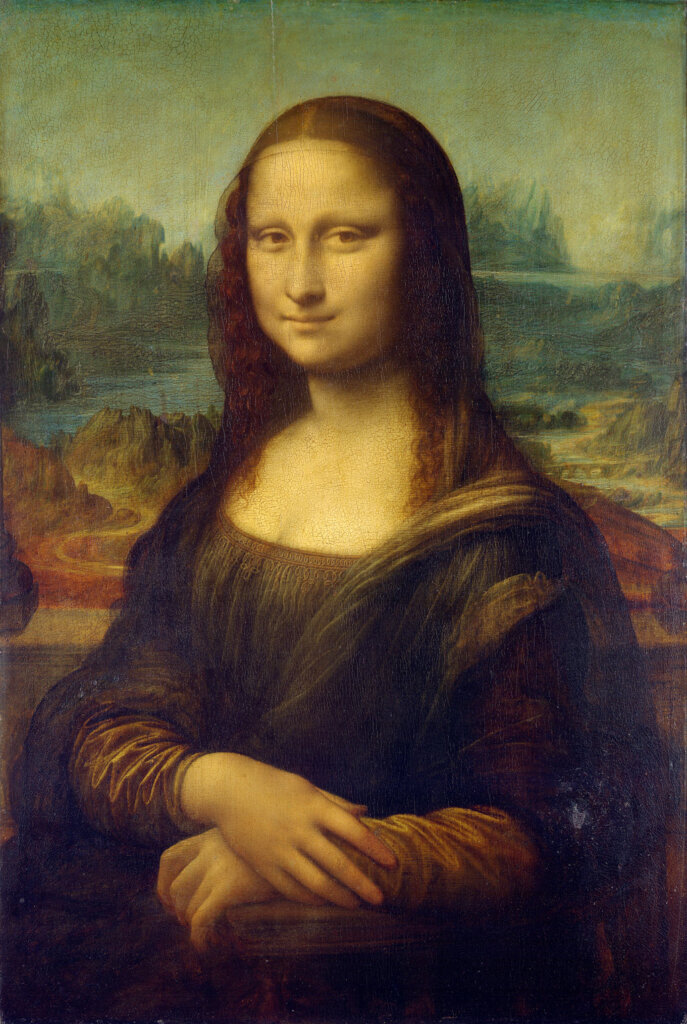
This picture is a resized version of the Mona Lisa wiki page.
After that, declare the images directory in the pubspec.yaml file:
flutter:
  # ...

  assets:
    - images/
Code language: YAML (yaml)
Finally, create an app that shows the Mona_Lisa.jpg file. The main.dart file will look like the following:
import 'package:flutter/material.dart';

void main() {
  runApp(const MonaLisaApp());
}

class MonaLisaApp extends StatelessWidget {
  const MonaLisaApp({Key? key}) : super(key: key);

  @override
  Widget build(BuildContext context) {
    return MaterialApp(
      debugShowCheckedModeBanner: false,
      home: Scaffold(
        appBar: AppBar(
          title: const Center(
            child: Text('Mona Lisa'),
          ),
          backgroundColor: Colors.brown[700],
        ),
        body: const SafeArea(
          child: Image(
            image: AssetImage('images/Mona_Lisa.jpg'),
            fit: BoxFit.cover,
            height: double.infinity,
            width: double.infinity,
            alignment: Alignment.center,
          ),
        ),
      ),
    );
  }
}
Code language: Dart (dart)
Output:
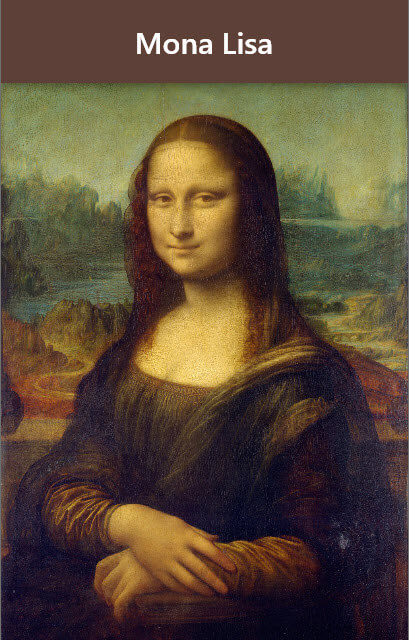
How it works.
- First, create
MonaLisaAppwidget that extends theStatelessWidgetclass. - Second, create a
MaterialAppwidget in thebuild()method of theMonaLisaAppwidget. The MaterialApp widget uses theScaffoldwidget for displaying anAppBarandSafeArea. - Third, use the
Imagewidget to display the picture of Mona Lisa. Theimageproperty of theImagewidget uses theAssetImageobject to fetch the picture from the asset bundle.
Summary #
- Declare asset files in the assets section of the
pubsec.yamlfile. - Use the
AssetImageto load a local image.

